If you’ve ever searched for a monthly compound interest calculator Excel guide, chances are you were disappointed. Most articles explain formulas but don’t truly help you build, understand, or use a calculator in real-life scenarios. This guide is different.
Table of Contents
Here, you’ll learn exactly how to create a powerful monthly compound interest calculator in Excel, why monthly compounding matters, how professionals use it for wealth planning, and how to avoid common mistakes that quietly ruin your calculations. Everything is explained in plain English—no finance jargon, no fluff. Let’s get into it.
Why Monthly Compound Interest Matters More Than You Think
Compound interest is often called the “eighth wonder of the world,” but the frequency of compounding is what really drives growth. Monthly compounding means your interest is calculated and added 12 times a year, not once.
What Monthly Compounding Does Differently
- Interest earns interest every month
- Faster balance growth over time
- Bigger impact on long-term investments
- Commonly used by banks, SIPs, and loans
Even a small difference in compounding frequency can mean thousands of dollars over 10–20 years.
That’s exactly why using a monthly compound interest calculator Excel file gives you a realistic picture of how your money grows.
What Is a Monthly Compound Interest Calculator in Excel?
A monthly compound interest calculator Excel spreadsheet is a customizable financial tool that calculates the future value of money when interest is compounded monthly. Unlike online calculators, Excel allows full control over inputs, assumptions, and projections.
What You Can Calculate
- Investment growth over time
- Monthly savings outcomes
- Interest earned vs contributions
- Long-term wealth projections
- Loan balance growth
Excel doesn’t just give you numbers—it shows how those numbers change month by month.
Why Excel Is Better Than Online Compound Interest Calculators
Online calculators are quick, but they’re limited.
Problems with Online Tools
- Fixed assumptions
- No transparency
- Limited scenarios
- No data ownership
Why Excel Wins
- Fully customizable
- Editable formulas
- Scenario comparison
- Visual charts
- Offline access
If you want accuracy, flexibility, and learning, Excel is unmatched.
How Monthly Compound Interest Actually Works
Before using Excel, it’s important to understand what’s happening behind the scenes.
The Core Concept
Every month:
- Interest is calculated on the current balance
- That interest is added to the principal
- Next month’s interest is calculated on the new balance
This cycle repeats, creating exponential growth over time.
The Formula Behind It
Traditional formula:
A = P (1 + r/12)^(12t)
Excel simplifies this with built-in financial functions.
How to Create a Monthly Compound Interest Calculator in Excel (Step-by-Step)
This is where most guides fail. Let’s do it properly.
Step 1: Set Up Your Excel Layout
Create clearly labeled input cells:
- Initial Investment
- Annual Interest Rate
- Investment Duration (Years)
- Monthly Contribution (Optional)
Clear inputs reduce mistakes and improve usability.
Step 2: Convert Annual Rate to Monthly Rate
Excel works best when rates match periods.
Formula:
=Annual_Rate / 12
For example:
- 8% annually → 0.08 / 12
Never skip this step—it’s one of the most common errors.
Step 3: Use Excel’s FV Function
This is the heart of your monthly compound interest calculator Excel.
Without monthly contributions:
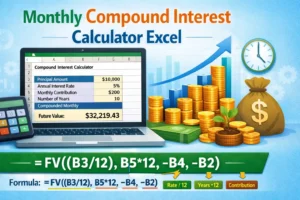
=FV(rate/12, years*12, 0, -principal)
With monthly contributions:
=FV(rate/12, years*12, -monthly_amount, -principal)
Excel automatically calculates the final amount after all monthly compounding periods.
Real-Life Example Using Excel
Let’s make this practical.
Scenario
- Initial Investment: $5,000
- Monthly Contribution: $300
- Annual Interest Rate: 7%
- Duration: 15 years
What Excel Shows You
- Final investment value
- Total contributions
- Total interest earned
Seeing these numbers update instantly when inputs change helps you make better decisions—fast.
Benefits of Using a Monthly Compound Interest Calculator Excel File
This isn’t just about math. It’s about clarity.
Key Benefits
- Clear long-term vision
- Better savings discipline
- Smarter investment planning
- Realistic expectations
- Financial confidence
Excel turns abstract ideas into visible outcomes.
How Professionals Use Excel for Compound Interest Calculations
Financial planners, analysts, and accountants rely heavily on Excel.
Professional Use Cases
- Retirement planning models
- SIP and mutual fund forecasting
- Loan repayment simulations
- Portfolio performance analysis
- Cash flow planning
Learning this skill puts you ahead of most casual investors.
Adding Monthly Breakdown for Better Insight
Want deeper insights? Create a monthly table.
Include Columns Like
- Month
- Opening balance
- Interest earned
- Contribution
- Closing balance
This breakdown shows exactly how compounding accelerates over time.
Important Tips for Accurate Excel Calculations
Small mistakes can ruin long-term projections.
Expert Tips
- Always match compounding frequency
- Use negative values for cash outflows
- Double-check formulas
- Keep assumptions realistic
- Document everything
Accuracy builds trust in your numbers.
Common Mistakes People Make in Excel Calculators
Avoid these silent killers.
Top Errors
- Forgetting to divide interest by 12
- Mixing years and months
- Using wrong signs in formulas
- Overestimating interest rates
- Ignoring inflation
Fixing these mistakes instantly improves accuracy.
Enhancing Your Calculator with Charts
Visuals turn numbers into understanding.
Recommended Charts
- Line chart for balance growth
- Bar chart for yearly contributions
- Comparison chart for scenarios
Charts improve engagement and clarity.
Excel vs Financial Apps: Which Should You Use?
Both have their place.
Excel Is Better When
- You want full control
- You’re learning finance
- You need customization
- You value transparency
Apps are convenient, but Excel builds real understanding.
Related Post
- Debt Snowball Worksheet: How to Create Your Own Payoff Tracker (No Download Required)
- Net Worth Calculator: The Only Financial Health Check You Actually Need
- Savings Goal Calculator: Plan Your Financial Future with Certainty
- Best Retirement Calculator India for Smart Planning
- The Bihar Student Credit Card: Your Bridge to Higher Education and Beyond
FAQs About Monthly Compound Interest Calculator Excel
1. Is Excel reliable for compound interest calculations?
Yes. Excel is widely used by finance professionals worldwide.
2. Can Excel calculate monthly SIP investments?
Absolutely. Monthly contributions are easily handled using the FV function.
3. Do I need advanced Excel skills?
No. Basic formulas are enough to build a powerful calculator.
4. Can I adjust for inflation in Excel?
Yes. You can subtract inflation from the interest rate for real returns.
5. Is Excel better than Google Sheets for this?
Excel offers more advanced tools and better offline performance.
Conclusion
A monthly compound interest calculator Excel file is one of the most practical financial tools you can learn to use. It doesn’t just calculate numbers—it teaches you how money grows, how time works in your favor, and how small monthly habits lead to massive results.
If you want control, clarity, and confidence in your financial planning, Excel is the tool you should master.
Once you build your own calculator, you’ll never rely on generic online tools again—and that’s a powerful upgrade to your financial life.